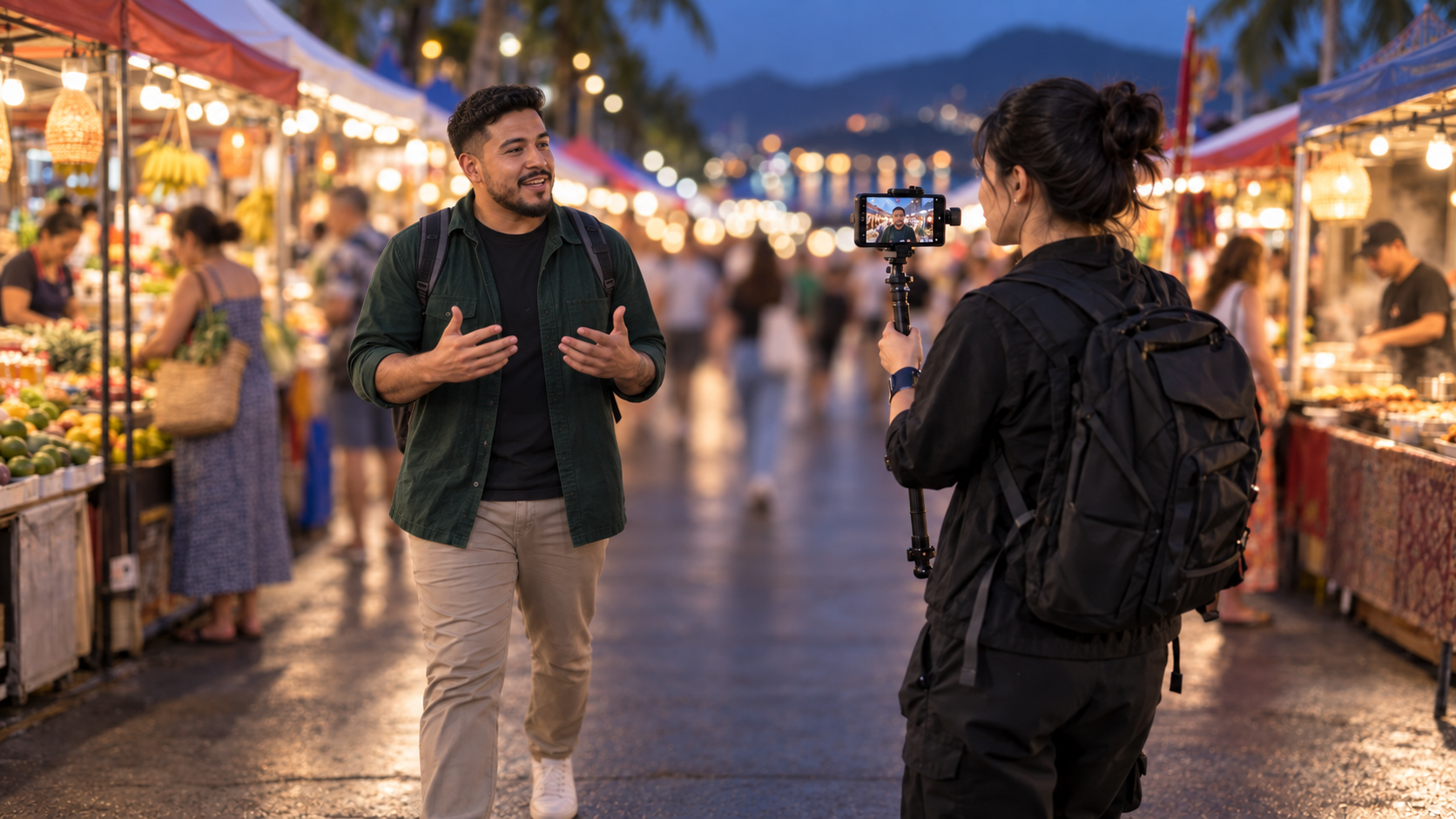

Name Your Camera

Use a name you will recognize in OBS, such as “Walking Camera” or “Interview Rig.”

Configure Channel

Not connected with OAuth

User Settings

Update the information shown across your Phone OBS Link account.

PNG, JPEG, or WebP. The image is resized before saving.
Change Password

Payment Information

Manage access periods and review payment history.

How Payments Work

No card information is stored by Phone OBS Link. Current payments are completed through Cash App or PayPal and reviewed before access is activated.

Cash AppPayPalStripe Planned

Current Access

Loading

Loading access information

Refund requests:

Payment History

Orders and approval status

Connections

Connect the streaming channels you use for broadcasts, chat, and stream information.

Streaming Services

0 camera sources are currently connected. Platform availability varies by service.

Open Phone Camera

Phone session QR code

Scan this QR code with the phone that will broadcast the camera.

Open Camera Link

Set Up OBS First

Complete these steps before entering your WebSocket settings.

  1. In OBS, open Tools → WebSocket Server Settings.
  2. Enable the WebSocket server and create a password.
  3. Keep this Streamer Dashboard browser page open while using mobile OBS controls.
  4. Keep OBS open, then continue to enter those settings here.

WebSocket Settings

Connect this dashboard to the WebSocket server running inside OBS.

Keep this dashboard open.Mobile OBS controls work only while this page remains connected to OBS.
OBS mobile bridge is offline